> ## Documentation Index
> Fetch the complete documentation index at: https://docs-dev-feat-sdk-reference-docs.mintlify.site/llms.txt
> Use this file to discover all available pages before exploring further.

> Découvrez comment configurer un formulaire de mise à jour de politique à l’aide de Forms for Actions afin que les utilisateurs puissent examiner et accepter de nouvelles conditions d’utilisation ou des mises à jour de consentement.

# Cas d’utilisation : Configurer un formulaire de mise à jour de politique à l’aide de Forms

<Card title="Avant de commencer">
  1. Créez une [application Machine-to-Machine](/docs/fr-ca/get-started/auth0-overview/create-applications/machine-to-machine-apps) avec les scopes suivants activés :

  * `read:users`
  * `update:users`
  * `create:users`
  * `read:users_app_metadata`
  * `update:users_app_metadata`
  * `create:users_app_metadata`

  2. Ajoutez une [connexion Vault](/docs/fr-ca/customize/forms/vault) à l’aide des identifiants de l’application M2M.
</Card>

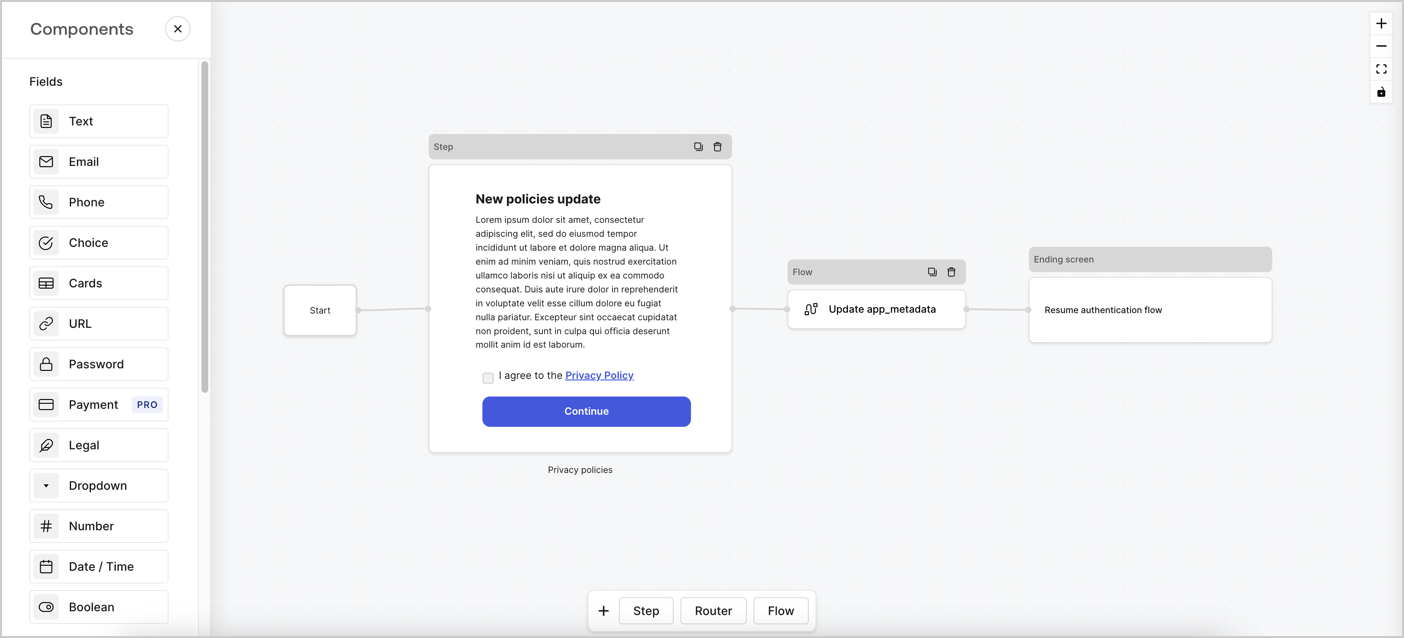
Forms for Actions vous permet de créer des flux personnalisés liés aux politiques de confidentialité et d’enregistrer le consentement dans l’objet `app_metadata`.
<Frame>
  <img src="https://mintcdn.com/docs-dev-feat-sdk-reference-docs/0tYOZc0OW-lAvvrU/docs/images/cdy7uua7fh8z/6i68dMvHDTijfRmSgN1x8Q/ad900e7d4c0fb34645921435472b8684/privavy-policy-form.png?fit=max&auto=format&n=0tYOZc0OW-lAvvrU&q=85&s=65f7d416f8dcc80c73d1de2d39c489ad" alt="Dashboard > Actions > Forms > Cas d’utilisation de politique de confidentialité" data-og-width="1404" width="1404" data-og-height="638" height="638" data-path="docs/images/cdy7uua7fh8z/6i68dMvHDTijfRmSgN1x8Q/ad900e7d4c0fb34645921435472b8684/privavy-policy-form.png" data-optimize="true" data-opv="3" srcset="https://mintcdn.com/docs-dev-feat-sdk-reference-docs/0tYOZc0OW-lAvvrU/docs/images/cdy7uua7fh8z/6i68dMvHDTijfRmSgN1x8Q/ad900e7d4c0fb34645921435472b8684/privavy-policy-form.png?w=280&fit=max&auto=format&n=0tYOZc0OW-lAvvrU&q=85&s=58c14fbf04cc53011c24554bf1da78d1 280w, https://mintcdn.com/docs-dev-feat-sdk-reference-docs/0tYOZc0OW-lAvvrU/docs/images/cdy7uua7fh8z/6i68dMvHDTijfRmSgN1x8Q/ad900e7d4c0fb34645921435472b8684/privavy-policy-form.png?w=560&fit=max&auto=format&n=0tYOZc0OW-lAvvrU&q=85&s=dd0e2954a3ed71f7a4dfd3e687ed2180 560w, https://mintcdn.com/docs-dev-feat-sdk-reference-docs/0tYOZc0OW-lAvvrU/docs/images/cdy7uua7fh8z/6i68dMvHDTijfRmSgN1x8Q/ad900e7d4c0fb34645921435472b8684/privavy-policy-form.png?w=840&fit=max&auto=format&n=0tYOZc0OW-lAvvrU&q=85&s=40728621f7c6e0fb3d20b0a21aaf3e2e 840w, https://mintcdn.com/docs-dev-feat-sdk-reference-docs/0tYOZc0OW-lAvvrU/docs/images/cdy7uua7fh8z/6i68dMvHDTijfRmSgN1x8Q/ad900e7d4c0fb34645921435472b8684/privavy-policy-form.png?w=1100&fit=max&auto=format&n=0tYOZc0OW-lAvvrU&q=85&s=b211207d4deb8fd85da4bbd672fcc607 1100w, https://mintcdn.com/docs-dev-feat-sdk-reference-docs/0tYOZc0OW-lAvvrU/docs/images/cdy7uua7fh8z/6i68dMvHDTijfRmSgN1x8Q/ad900e7d4c0fb34645921435472b8684/privavy-policy-form.png?w=1650&fit=max&auto=format&n=0tYOZc0OW-lAvvrU&q=85&s=f0d2948707306e753f20ce551e9dfce4 1650w, https://mintcdn.com/docs-dev-feat-sdk-reference-docs/0tYOZc0OW-lAvvrU/docs/images/cdy7uua7fh8z/6i68dMvHDTijfRmSgN1x8Q/ad900e7d4c0fb34645921435472b8684/privavy-policy-form.png?w=2500&fit=max&auto=format&n=0tYOZc0OW-lAvvrU&q=85&s=4049274783ebbbc68140df80cdd1defb 2500w" />
</Frame>

Les sections ci-dessous expliquent comment créer un formulaire de mise à jour de politique à l’aide de nœuds et de flux, ainsi que les étapes pour ajouter votre formulaire à une Action [Post Login](/docs/fr-ca/customize/actions/explore-triggers/signup-and-login-triggers/login-trigger).

<h2 id="create-a-form-from-scratch">
  Créer un formulaire à partir de zéro
</h2>

Suivez ces étapes pour créer un formulaire afin de recueillir des informations :

1. Ouvrez l’éditeur de formulaires en sélectionnant **Auth0 Dashboard > Actions > Forms.**
2. Sélectionnez **Create Form** > **Start from scratch**.

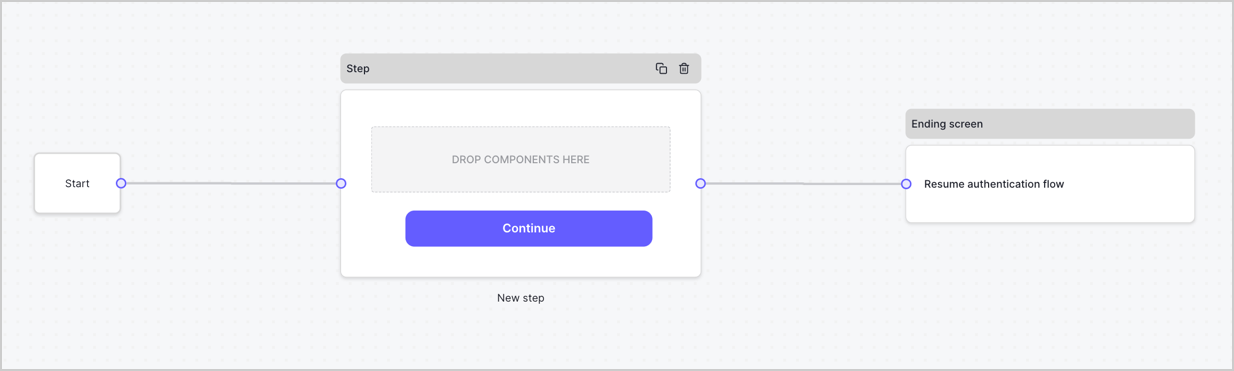
Par défaut, un nouveau formulaire contient un nœud Start, un nœud Step et un nœud Ending screen.
<Frame>
  <img src="https://mintcdn.com/docs-dev-feat-sdk-reference-docs/cH8SproRs4WJoPzC/docs/images/cdy7uua7fh8z/2TZ9jSjgEcARFpULI6hz4R/a4319a1bd482f2ee5cc23100fdb2f42c/New-form-Forms-for-action-use-case.png?fit=max&auto=format&n=cH8SproRs4WJoPzC&q=85&s=08be40c1b5089331e5bd09f7ccb1c771" alt="Dashboard > Forms > Use Cases > Form" data-og-width="1234" width="1234" data-og-height="371" height="371" data-path="docs/images/cdy7uua7fh8z/2TZ9jSjgEcARFpULI6hz4R/a4319a1bd482f2ee5cc23100fdb2f42c/New-form-Forms-for-action-use-case.png" data-optimize="true" data-opv="3" srcset="https://mintcdn.com/docs-dev-feat-sdk-reference-docs/cH8SproRs4WJoPzC/docs/images/cdy7uua7fh8z/2TZ9jSjgEcARFpULI6hz4R/a4319a1bd482f2ee5cc23100fdb2f42c/New-form-Forms-for-action-use-case.png?w=280&fit=max&auto=format&n=cH8SproRs4WJoPzC&q=85&s=d891e85952448b4d229136474fb4d613 280w, https://mintcdn.com/docs-dev-feat-sdk-reference-docs/cH8SproRs4WJoPzC/docs/images/cdy7uua7fh8z/2TZ9jSjgEcARFpULI6hz4R/a4319a1bd482f2ee5cc23100fdb2f42c/New-form-Forms-for-action-use-case.png?w=560&fit=max&auto=format&n=cH8SproRs4WJoPzC&q=85&s=8e348e5c54ec54bc5d12326d37fcb3b1 560w, https://mintcdn.com/docs-dev-feat-sdk-reference-docs/cH8SproRs4WJoPzC/docs/images/cdy7uua7fh8z/2TZ9jSjgEcARFpULI6hz4R/a4319a1bd482f2ee5cc23100fdb2f42c/New-form-Forms-for-action-use-case.png?w=840&fit=max&auto=format&n=cH8SproRs4WJoPzC&q=85&s=845f8fd9d727c2f2ef8ed7ad53a7d20e 840w, https://mintcdn.com/docs-dev-feat-sdk-reference-docs/cH8SproRs4WJoPzC/docs/images/cdy7uua7fh8z/2TZ9jSjgEcARFpULI6hz4R/a4319a1bd482f2ee5cc23100fdb2f42c/New-form-Forms-for-action-use-case.png?w=1100&fit=max&auto=format&n=cH8SproRs4WJoPzC&q=85&s=839f90bbb199599b1cb859905d4e8c3c 1100w, https://mintcdn.com/docs-dev-feat-sdk-reference-docs/cH8SproRs4WJoPzC/docs/images/cdy7uua7fh8z/2TZ9jSjgEcARFpULI6hz4R/a4319a1bd482f2ee5cc23100fdb2f42c/New-form-Forms-for-action-use-case.png?w=1650&fit=max&auto=format&n=cH8SproRs4WJoPzC&q=85&s=1fbd04607f7315ab4f3d26038938e063 1650w, https://mintcdn.com/docs-dev-feat-sdk-reference-docs/cH8SproRs4WJoPzC/docs/images/cdy7uua7fh8z/2TZ9jSjgEcARFpULI6hz4R/a4319a1bd482f2ee5cc23100fdb2f42c/New-form-Forms-for-action-use-case.png?w=2500&fit=max&auto=format&n=cH8SproRs4WJoPzC&q=85&s=2f6056c38310189da626687286c630fc 2500w" />
</Frame>

<h3 id="configure-the-step-node">
  Configurer le nœud Step
</h3>

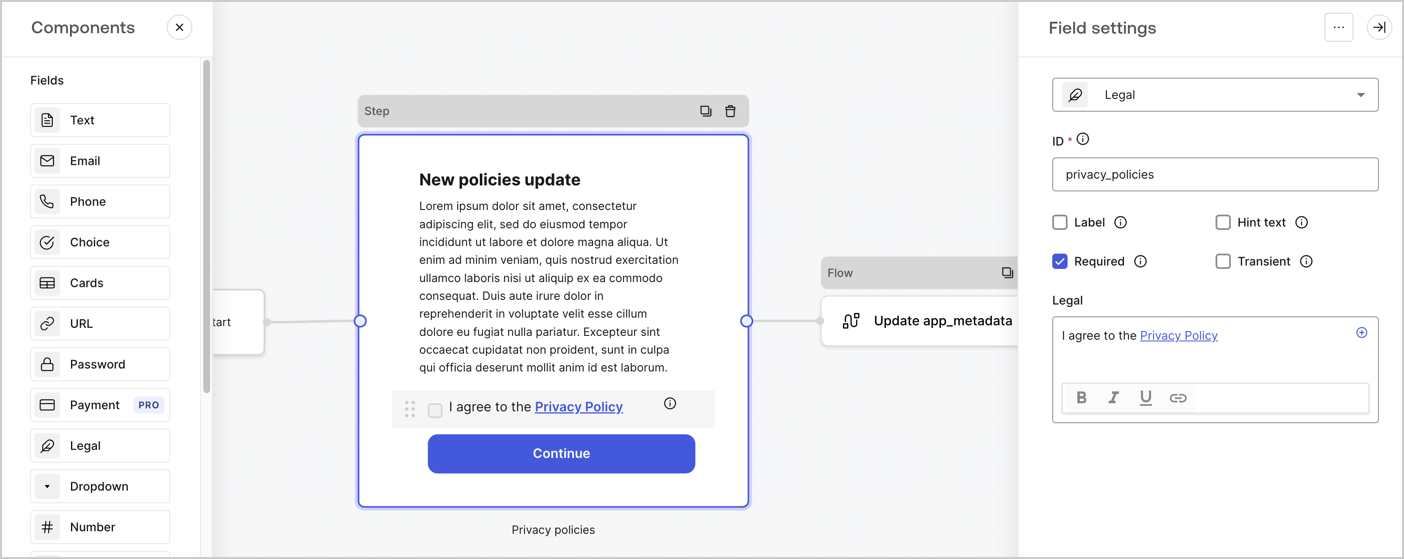
Le nœud Step est l’interface graphique visible par les utilisateurs. Ajoutez des [champs](/docs/fr-ca/customize/forms/nodes-and-components) au nœud Step pour recueillir la nouvelle valeur d’acceptation en suivant ces étapes :

1. Faites glisser un champ **Texte enrichi** du **menu Composants** vers le nœud **Step**.

   * **Texte enrichi** : Saisissez une description des mises à jour apportées à votre politique de confidentialité.
   * Sélectionnez **Enregistrer**.
2. Faites glisser un champ **Juridique** vers le nœud **Step**.

   * **ID** : Saisissez `privacy_policies`.
   * **Obligatoire** : Cochez la case.
   * **Juridique** : Saisissez `J’accepte la politique de confidentialité`.
   * Sélectionnez **Enregistrer**.
3. Sélectionnez **Publier** pour enregistrer.
<Frame>
  <img src="https://mintcdn.com/docs-dev-feat-sdk-reference-docs/FaH4AVZw-B21Gt8Q/docs/images/cdy7uua7fh8z/59zFFjQjAnjogkc2QGIqqJ/0ad66b1b636544122aa4e65968b76c2c/privacy-policy-step-node.png?fit=max&auto=format&n=FaH4AVZw-B21Gt8Q&q=85&s=61abf1cdad0d409ea3fcd7087a228625" alt="Dashboard > Actions > Forms > Cas d’utilisation du nœud Step de la politique de confidentialité" data-og-width="1404" width="1404" data-og-height="559" height="559" data-path="docs/images/cdy7uua7fh8z/59zFFjQjAnjogkc2QGIqqJ/0ad66b1b636544122aa4e65968b76c2c/privacy-policy-step-node.png" data-optimize="true" data-opv="3" srcset="https://mintcdn.com/docs-dev-feat-sdk-reference-docs/FaH4AVZw-B21Gt8Q/docs/images/cdy7uua7fh8z/59zFFjQjAnjogkc2QGIqqJ/0ad66b1b636544122aa4e65968b76c2c/privacy-policy-step-node.png?w=280&fit=max&auto=format&n=FaH4AVZw-B21Gt8Q&q=85&s=30ec85596dc9ba695f4aa3a8a32e2012 280w, https://mintcdn.com/docs-dev-feat-sdk-reference-docs/FaH4AVZw-B21Gt8Q/docs/images/cdy7uua7fh8z/59zFFjQjAnjogkc2QGIqqJ/0ad66b1b636544122aa4e65968b76c2c/privacy-policy-step-node.png?w=560&fit=max&auto=format&n=FaH4AVZw-B21Gt8Q&q=85&s=344b414b0c63aa763ca37e5111ae3b6f 560w, https://mintcdn.com/docs-dev-feat-sdk-reference-docs/FaH4AVZw-B21Gt8Q/docs/images/cdy7uua7fh8z/59zFFjQjAnjogkc2QGIqqJ/0ad66b1b636544122aa4e65968b76c2c/privacy-policy-step-node.png?w=840&fit=max&auto=format&n=FaH4AVZw-B21Gt8Q&q=85&s=4ac751fe014e9fc08bb1aae180d09228 840w, https://mintcdn.com/docs-dev-feat-sdk-reference-docs/FaH4AVZw-B21Gt8Q/docs/images/cdy7uua7fh8z/59zFFjQjAnjogkc2QGIqqJ/0ad66b1b636544122aa4e65968b76c2c/privacy-policy-step-node.png?w=1100&fit=max&auto=format&n=FaH4AVZw-B21Gt8Q&q=85&s=5b3bb9dcf9f65e957d70521f98b78764 1100w, https://mintcdn.com/docs-dev-feat-sdk-reference-docs/FaH4AVZw-B21Gt8Q/docs/images/cdy7uua7fh8z/59zFFjQjAnjogkc2QGIqqJ/0ad66b1b636544122aa4e65968b76c2c/privacy-policy-step-node.png?w=1650&fit=max&auto=format&n=FaH4AVZw-B21Gt8Q&q=85&s=abe4837f705959966e9272ddc291346c 1650w, https://mintcdn.com/docs-dev-feat-sdk-reference-docs/FaH4AVZw-B21Gt8Q/docs/images/cdy7uua7fh8z/59zFFjQjAnjogkc2QGIqqJ/0ad66b1b636544122aa4e65968b76c2c/privacy-policy-step-node.png?w=2500&fit=max&auto=format&n=FaH4AVZw-B21Gt8Q&q=85&s=0bffc0fe93a831e076aa3ec1f9a83b18 2500w" />
</Frame>

<h3 id="configure-the-flow-node">
  Configurer le nœud **Flow**
</h3>

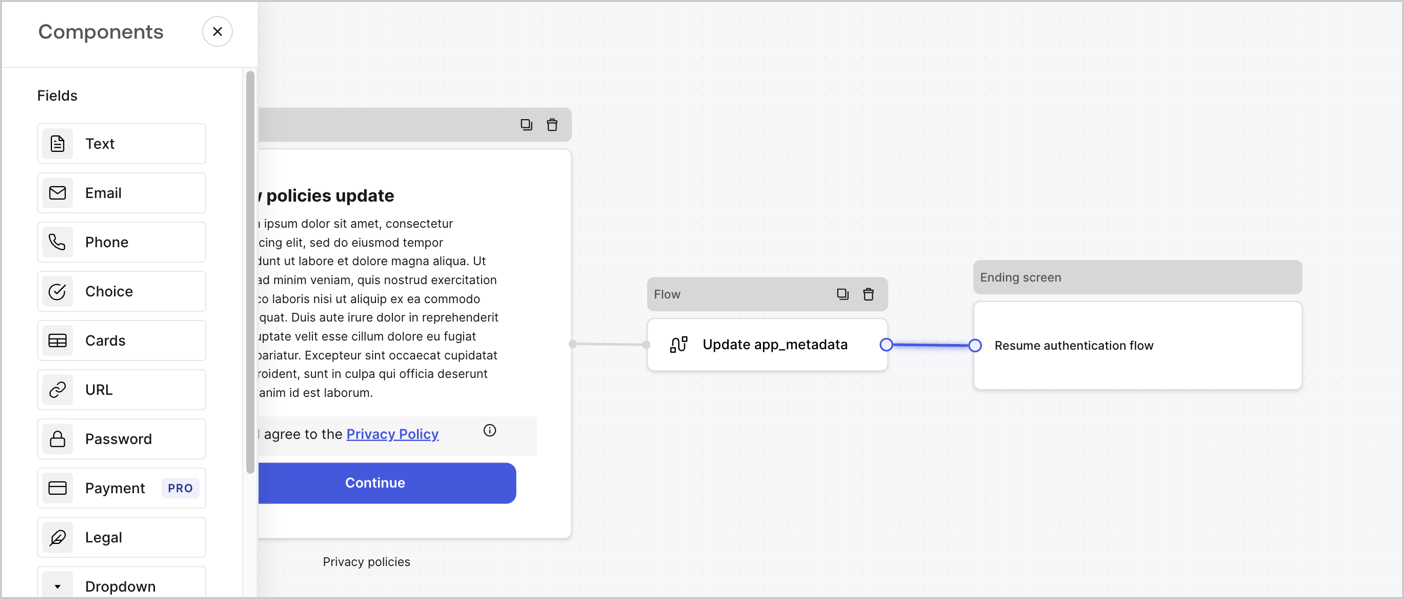
Ajoutez un nœud **Flow** après le nœud **Step** pour mettre à jour `app_metadata` et reprendre le flux d’authentification en suivant les étapes ci-dessous :

1. Sélectionnez **Flow** au bas de l’éditeur de formulaires.
2. Supprimez le lien existant entre les nœuds **Step** et **Ending Screen**.
3. Sélectionnez le nouveau **Flow** > **Click to add a flow** > **Create a new flow.**

   * Entrez `Update app_metadata` dans le champ **Name**.
   * Sélectionnez **Create**.
   * Sélectionnez **Save**.
4. Reliez le nœud **Flow** aux nœuds **Step** et **Ending Screen**, comme illustré ci-dessous.
5. Sélectionnez **Publish** pour enregistrer.
<Frame>
  <img src="https://mintcdn.com/docs-dev-feat-sdk-reference-docs/0tYOZc0OW-lAvvrU/docs/images/cdy7uua7fh8z/6YIkzm7SrpM9LW76AXuRzh/353c518fe82bbaa440836da1d83596d6/link-policies.png?fit=max&auto=format&n=0tYOZc0OW-lAvvrU&q=85&s=8f0a7e232218e223168e2dadf2412d5f" alt="Dashboard > Actions > Forms > Form" data-og-width="1404" width="1404" data-og-height="599" height="599" data-path="docs/images/cdy7uua7fh8z/6YIkzm7SrpM9LW76AXuRzh/353c518fe82bbaa440836da1d83596d6/link-policies.png" data-optimize="true" data-opv="3" srcset="https://mintcdn.com/docs-dev-feat-sdk-reference-docs/0tYOZc0OW-lAvvrU/docs/images/cdy7uua7fh8z/6YIkzm7SrpM9LW76AXuRzh/353c518fe82bbaa440836da1d83596d6/link-policies.png?w=280&fit=max&auto=format&n=0tYOZc0OW-lAvvrU&q=85&s=08a7be9ebe18a4bb3ad053cdaf2a1a39 280w, https://mintcdn.com/docs-dev-feat-sdk-reference-docs/0tYOZc0OW-lAvvrU/docs/images/cdy7uua7fh8z/6YIkzm7SrpM9LW76AXuRzh/353c518fe82bbaa440836da1d83596d6/link-policies.png?w=560&fit=max&auto=format&n=0tYOZc0OW-lAvvrU&q=85&s=31b265f9fae9385ab6d23f366932498d 560w, https://mintcdn.com/docs-dev-feat-sdk-reference-docs/0tYOZc0OW-lAvvrU/docs/images/cdy7uua7fh8z/6YIkzm7SrpM9LW76AXuRzh/353c518fe82bbaa440836da1d83596d6/link-policies.png?w=840&fit=max&auto=format&n=0tYOZc0OW-lAvvrU&q=85&s=e5971851768c33849f681ac038c33788 840w, https://mintcdn.com/docs-dev-feat-sdk-reference-docs/0tYOZc0OW-lAvvrU/docs/images/cdy7uua7fh8z/6YIkzm7SrpM9LW76AXuRzh/353c518fe82bbaa440836da1d83596d6/link-policies.png?w=1100&fit=max&auto=format&n=0tYOZc0OW-lAvvrU&q=85&s=d0443ccedb4bccd9ce10df5c8a14f1eb 1100w, https://mintcdn.com/docs-dev-feat-sdk-reference-docs/0tYOZc0OW-lAvvrU/docs/images/cdy7uua7fh8z/6YIkzm7SrpM9LW76AXuRzh/353c518fe82bbaa440836da1d83596d6/link-policies.png?w=1650&fit=max&auto=format&n=0tYOZc0OW-lAvvrU&q=85&s=5357997bae827d7bdf2516c803771b87 1650w, https://mintcdn.com/docs-dev-feat-sdk-reference-docs/0tYOZc0OW-lAvvrU/docs/images/cdy7uua7fh8z/6YIkzm7SrpM9LW76AXuRzh/353c518fe82bbaa440836da1d83596d6/link-policies.png?w=2500&fit=max&auto=format&n=0tYOZc0OW-lAvvrU&q=85&s=1707858fb5c45a61f2f30ee8f2b3850b 2500w" />
</Frame>

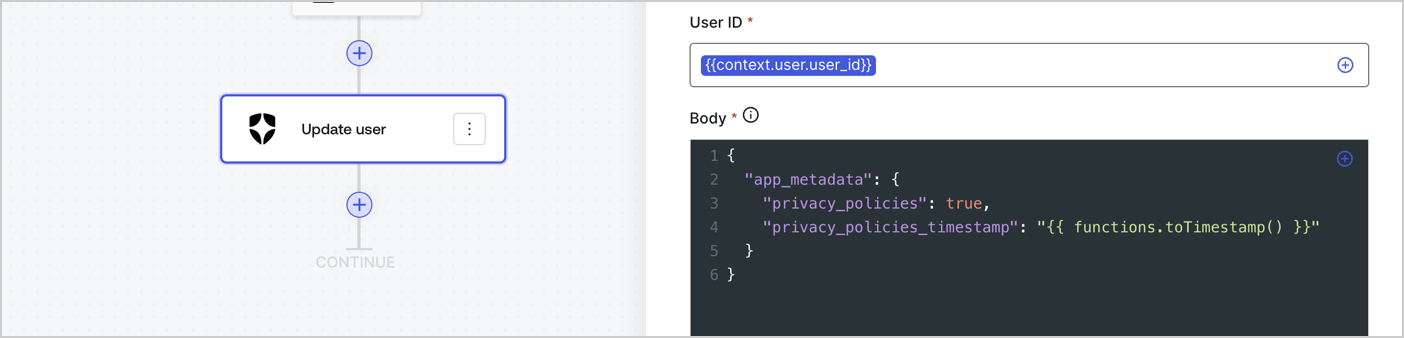
Ajoutez une action Auth0 **Update user** au flux en suivant les étapes ci-dessous :

1. Sélectionnez **Flow** **Update app\_metadata** > **Edit flow** pour ouvrir l’éditeur de flux dans un nouvel onglet.
2. Sous le StartAction, sélectionnez l’icône **+** pour ajouter une action **Update user**. Remplissez les champs ci-dessous, puis sélectionnez **Save** pour continuer.

   * **Connection** : Dans la liste déroulante, sélectionnez la connexion Vault de votre application M2M.

   * **User ID** : Entrez `{{context.user.user_id}}`.

   * **Body** : Copiez-collez le code suivant pour mettre à jour `app_metadata` avec les propriétés `privacy_policies` et `privacy_policies_timestamp`.

     ```text lines theme={null}
     {
       "app_metadata": {
         "privacy_policies": true,
         "privacy_policies_timestamp": "{{ functions.toTimestamp() }}"
       }
     }
     ```

   * Sélectionnez **Save**.
3. Sélectionnez **Publish** pour enregistrer.
<Frame>
  <img src="https://mintcdn.com/docs-dev-feat-sdk-reference-docs/wbt6kjT68ecuXhM6/docs/images/cdy7uua7fh8z/CvMNIwWrOUwaFW4X3G28p/1fb70ae57a20749d9ffaaba8dc0b7e26/update-user-privacy.png?fit=max&auto=format&n=wbt6kjT68ecuXhM6&q=85&s=1045b6d722a5164463b627b13a8eb2f5" alt="Dashboard > Actions > Forms > User case privacy policy code" data-og-width="1404" width="1404" data-og-height="338" height="338" data-path="docs/images/cdy7uua7fh8z/CvMNIwWrOUwaFW4X3G28p/1fb70ae57a20749d9ffaaba8dc0b7e26/update-user-privacy.png" data-optimize="true" data-opv="3" srcset="https://mintcdn.com/docs-dev-feat-sdk-reference-docs/wbt6kjT68ecuXhM6/docs/images/cdy7uua7fh8z/CvMNIwWrOUwaFW4X3G28p/1fb70ae57a20749d9ffaaba8dc0b7e26/update-user-privacy.png?w=280&fit=max&auto=format&n=wbt6kjT68ecuXhM6&q=85&s=2aa7682653cb917506f9f8f898ac6386 280w, https://mintcdn.com/docs-dev-feat-sdk-reference-docs/wbt6kjT68ecuXhM6/docs/images/cdy7uua7fh8z/CvMNIwWrOUwaFW4X3G28p/1fb70ae57a20749d9ffaaba8dc0b7e26/update-user-privacy.png?w=560&fit=max&auto=format&n=wbt6kjT68ecuXhM6&q=85&s=6c0486bea2b110c3aa76a7c39584d72d 560w, https://mintcdn.com/docs-dev-feat-sdk-reference-docs/wbt6kjT68ecuXhM6/docs/images/cdy7uua7fh8z/CvMNIwWrOUwaFW4X3G28p/1fb70ae57a20749d9ffaaba8dc0b7e26/update-user-privacy.png?w=840&fit=max&auto=format&n=wbt6kjT68ecuXhM6&q=85&s=e99a542a380bd54f94878343d624afbe 840w, https://mintcdn.com/docs-dev-feat-sdk-reference-docs/wbt6kjT68ecuXhM6/docs/images/cdy7uua7fh8z/CvMNIwWrOUwaFW4X3G28p/1fb70ae57a20749d9ffaaba8dc0b7e26/update-user-privacy.png?w=1100&fit=max&auto=format&n=wbt6kjT68ecuXhM6&q=85&s=eeace3125cdaf226b6b809de3b187c67 1100w, https://mintcdn.com/docs-dev-feat-sdk-reference-docs/wbt6kjT68ecuXhM6/docs/images/cdy7uua7fh8z/CvMNIwWrOUwaFW4X3G28p/1fb70ae57a20749d9ffaaba8dc0b7e26/update-user-privacy.png?w=1650&fit=max&auto=format&n=wbt6kjT68ecuXhM6&q=85&s=86d65c831f4ad49b87708ec58300a497 1650w, https://mintcdn.com/docs-dev-feat-sdk-reference-docs/wbt6kjT68ecuXhM6/docs/images/cdy7uua7fh8z/CvMNIwWrOUwaFW4X3G28p/1fb70ae57a20749d9ffaaba8dc0b7e26/update-user-privacy.png?w=2500&fit=max&auto=format&n=wbt6kjT68ecuXhM6&q=85&s=0d43c21de837b4f7d439898039a6943e 2500w" />
</Frame>

<Callout icon="file-lines" color="#0EA5E9" iconType="regular">
  Le flux **Update app\_metadata** ajoute la valeur `privacy_policies true` à l’objet `app_metadata` et génère aussi un horodatage à l’aide d’une [fonction utilitaire.](/docs/fr-ca/customize/forms/variables)
</Callout>

<h2 id="retrieve-the-form-render-code">
  Récupérer le code de rendu du formulaire
</h2>

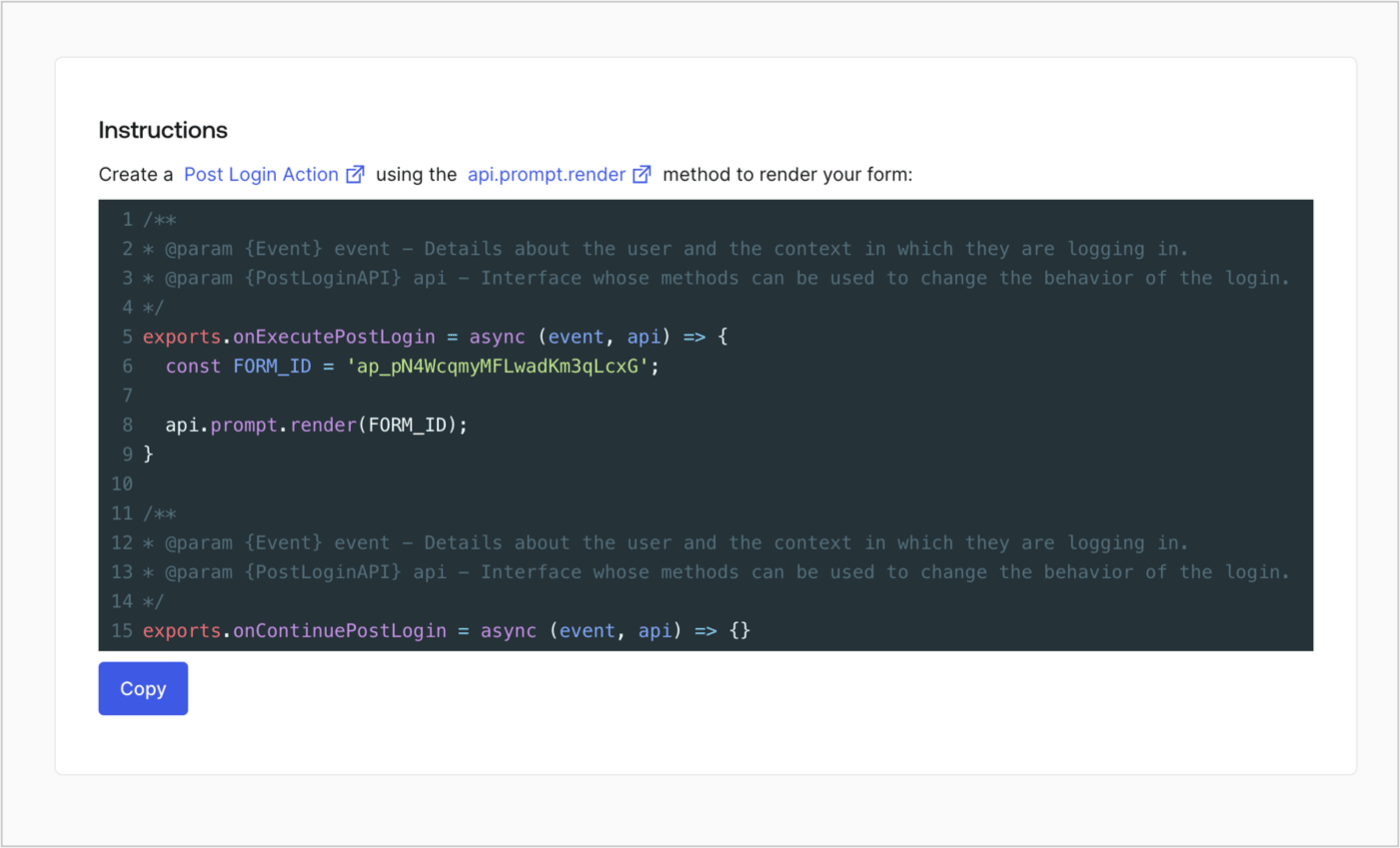
Récupérez le code de rendu de votre formulaire afin d’afficher le formulaire au moyen d’une Action Post Login personnalisée en suivant ces étapes :

* Dans l’éditeur de formulaires, sélectionnez **`<> Render`**.
* Sélectionnez **Copy**.
<Frame>
  <img src="https://mintcdn.com/docs-dev-feat-sdk-reference-docs/cH8SproRs4WJoPzC/docs/images/cdy7uua7fh8z/2EIUzc539sq9lwoTKbjoJv/496a864c0fc44a782c9cadca119dbfb0/embed.png?fit=max&auto=format&n=cH8SproRs4WJoPzC&q=85&s=0348bac1e775dd1f0aa44781a4396182" alt="Dashboard > Actions > Forms > Form > Embed" data-og-width="1400" width="1400" data-og-height="848" height="848" data-path="docs/images/cdy7uua7fh8z/2EIUzc539sq9lwoTKbjoJv/496a864c0fc44a782c9cadca119dbfb0/embed.png" data-optimize="true" data-opv="3" srcset="https://mintcdn.com/docs-dev-feat-sdk-reference-docs/cH8SproRs4WJoPzC/docs/images/cdy7uua7fh8z/2EIUzc539sq9lwoTKbjoJv/496a864c0fc44a782c9cadca119dbfb0/embed.png?w=280&fit=max&auto=format&n=cH8SproRs4WJoPzC&q=85&s=802852de44d78919f4584a26cb23c4e0 280w, https://mintcdn.com/docs-dev-feat-sdk-reference-docs/cH8SproRs4WJoPzC/docs/images/cdy7uua7fh8z/2EIUzc539sq9lwoTKbjoJv/496a864c0fc44a782c9cadca119dbfb0/embed.png?w=560&fit=max&auto=format&n=cH8SproRs4WJoPzC&q=85&s=e1b310b92564c814b461ae84dd8c28ea 560w, https://mintcdn.com/docs-dev-feat-sdk-reference-docs/cH8SproRs4WJoPzC/docs/images/cdy7uua7fh8z/2EIUzc539sq9lwoTKbjoJv/496a864c0fc44a782c9cadca119dbfb0/embed.png?w=840&fit=max&auto=format&n=cH8SproRs4WJoPzC&q=85&s=b01e1d3f7b2f77a5f94e5cfbff037d64 840w, https://mintcdn.com/docs-dev-feat-sdk-reference-docs/cH8SproRs4WJoPzC/docs/images/cdy7uua7fh8z/2EIUzc539sq9lwoTKbjoJv/496a864c0fc44a782c9cadca119dbfb0/embed.png?w=1100&fit=max&auto=format&n=cH8SproRs4WJoPzC&q=85&s=c480cd04c9b0aeb04c40483ce89030be 1100w, https://mintcdn.com/docs-dev-feat-sdk-reference-docs/cH8SproRs4WJoPzC/docs/images/cdy7uua7fh8z/2EIUzc539sq9lwoTKbjoJv/496a864c0fc44a782c9cadca119dbfb0/embed.png?w=1650&fit=max&auto=format&n=cH8SproRs4WJoPzC&q=85&s=23bf784e6b78d3b38dbda763eb7013f9 1650w, https://mintcdn.com/docs-dev-feat-sdk-reference-docs/cH8SproRs4WJoPzC/docs/images/cdy7uua7fh8z/2EIUzc539sq9lwoTKbjoJv/496a864c0fc44a782c9cadca119dbfb0/embed.png?w=2500&fit=max&auto=format&n=cH8SproRs4WJoPzC&q=85&s=1776116eaf817fa922dd110673279f9e 2500w" />
</Frame>

<h2 id="create-a-post-login-action">
  Créer une Action Post Login
</h2>

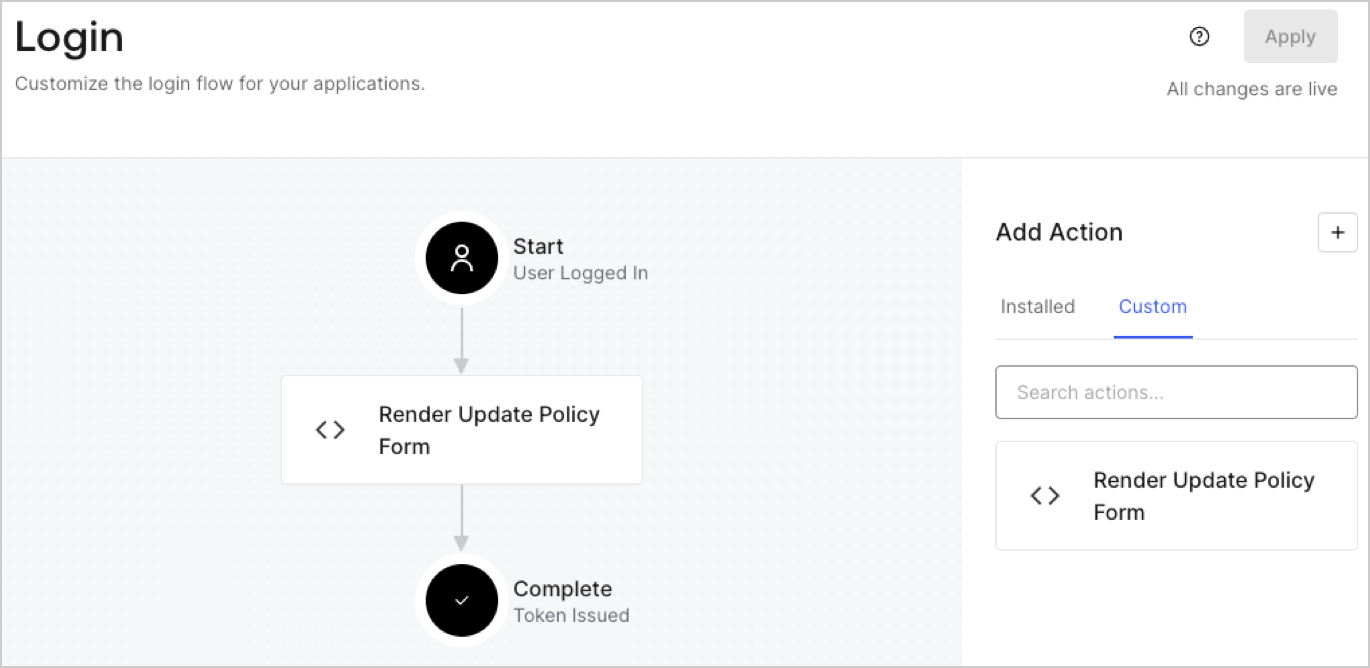
Créez une action post-login pour afficher votre formulaire en suivant les étapes ci-dessous :

1. Accédez à **Auth0 Dashboard > Actions > Flows > Login.**
2. Sélectionnez l’icône **+**, puis **Build from scratch** :

   * **Nom** : Entrez `Render Update Policy Form`.
   * **Déclencheur** : Sélectionnez `Login / Post Login`.
   * **Runtime** : Sélectionnez la version recommandée.
3. Sélectionnez **Créer**.

Pour configurer l’action post-login :

1. Supprimez le code existant dans l’éditeur de code.
2. Collez le code de rendu du formulaire dans l’éditeur de code.
3. Modifiez le code pour définir la logique conditionnelle qui affichera le formulaire.

   ```javascript lines theme={null}
   /**
   * @param {Event} event - Détails sur l’utilisateur et le contexte dans lequel il se connecte.
   * @param {PostLoginAPI} api - Interface dont les méthodes peuvent être utilisées pour modifier le comportement de la connexion.
   */
   exports.onExecutePostLogin = async (event, api) => {
     const FORM_ID = 'REPLACE_WITH_YOUR_FORM_ID';

     if (event.user.app_metadata.privacy_policies !== true) {
       api.prompt.render(FORM_ID);
     }
   }

   exports.onContinuePostLogin = async (event, api) => { }
   ```

   <Callout icon="file-lines" color="#0EA5E9" iconType="regular">
     L’exemple de code ci-dessus affichera le formulaire si la propriété `privacy_policies` est absente de l’objet app metadata de l’utilisateur.
   </Callout>
4. Sélectionnez **Déployer**.
5. Glissez-déposez l’Action **Render Update Policy Form** dans le flux de **Login**.
   <Frame>
     <img src="https://mintcdn.com/docs-dev-feat-sdk-reference-docs/FaH4AVZw-B21Gt8Q/docs/images/cdy7uua7fh8z/5TOwDgevZsBqd7yZynUYWU/41ca909dc3007aed4f40ff794a05efa5/postlogin.png?fit=max&auto=format&n=FaH4AVZw-B21Gt8Q&q=85&s=872c75d02199d1ca091bb4eae985d484" alt="Dashboard > Forms > cas d’utilisation > action de connexion pour afficher le formulaire de mise à jour de la politique" data-og-width="1370" width="1370" data-og-height="668" height="668" data-path="docs/images/cdy7uua7fh8z/5TOwDgevZsBqd7yZynUYWU/41ca909dc3007aed4f40ff794a05efa5/postlogin.png" data-optimize="true" data-opv="3" srcset="https://mintcdn.com/docs-dev-feat-sdk-reference-docs/FaH4AVZw-B21Gt8Q/docs/images/cdy7uua7fh8z/5TOwDgevZsBqd7yZynUYWU/41ca909dc3007aed4f40ff794a05efa5/postlogin.png?w=280&fit=max&auto=format&n=FaH4AVZw-B21Gt8Q&q=85&s=b79b4e8ffbe19103091a08b2aef60e02 280w, https://mintcdn.com/docs-dev-feat-sdk-reference-docs/FaH4AVZw-B21Gt8Q/docs/images/cdy7uua7fh8z/5TOwDgevZsBqd7yZynUYWU/41ca909dc3007aed4f40ff794a05efa5/postlogin.png?w=560&fit=max&auto=format&n=FaH4AVZw-B21Gt8Q&q=85&s=78f555775ec177381d7ea5d4f84b9798 560w, https://mintcdn.com/docs-dev-feat-sdk-reference-docs/FaH4AVZw-B21Gt8Q/docs/images/cdy7uua7fh8z/5TOwDgevZsBqd7yZynUYWU/41ca909dc3007aed4f40ff794a05efa5/postlogin.png?w=840&fit=max&auto=format&n=FaH4AVZw-B21Gt8Q&q=85&s=206d28f971153238a9731b85f3a6f55a 840w, https://mintcdn.com/docs-dev-feat-sdk-reference-docs/FaH4AVZw-B21Gt8Q/docs/images/cdy7uua7fh8z/5TOwDgevZsBqd7yZynUYWU/41ca909dc3007aed4f40ff794a05efa5/postlogin.png?w=1100&fit=max&auto=format&n=FaH4AVZw-B21Gt8Q&q=85&s=2d42ef7e3ca924603fb6247a2c007538 1100w, https://mintcdn.com/docs-dev-feat-sdk-reference-docs/FaH4AVZw-B21Gt8Q/docs/images/cdy7uua7fh8z/5TOwDgevZsBqd7yZynUYWU/41ca909dc3007aed4f40ff794a05efa5/postlogin.png?w=1650&fit=max&auto=format&n=FaH4AVZw-B21Gt8Q&q=85&s=5591ae537fb9aef02e1bf041c6094f07 1650w, https://mintcdn.com/docs-dev-feat-sdk-reference-docs/FaH4AVZw-B21Gt8Q/docs/images/cdy7uua7fh8z/5TOwDgevZsBqd7yZynUYWU/41ca909dc3007aed4f40ff794a05efa5/postlogin.png?w=2500&fit=max&auto=format&n=FaH4AVZw-B21Gt8Q&q=85&s=ed1f6c4ddba521d440821c062c6c08e1 2500w" />
   </Frame>
6. Sélectionnez **Appliquer**.

<h3 id="test-implementation">
  Test de la mise en œuvre
</h3>

Testez la mise en œuvre en suivant ces étapes :

1. Connectez-vous avec un utilisateur existant dont l’attribut app`_metadata` `privacy_policies` n’a aucune valeur.
2. L’Action post-login dans le flux de Login affichera le formulaire et demandera l’acceptation.
3. Sélectionnez **Auth0 Dashboard > User Management > Users,** repérez l’utilisateur et vérifiez que l’attribut `app_metadata` `privacy_policies` contient la valeur `true` ainsi qu’un horodatage.
