> ## Documentation Index
> Fetch the complete documentation index at: https://docs-dev-feat-sdk-reference-docs.mintlify.site/llms.txt
> Use this file to discover all available pages before exploring further.

> Auth0 Dashboard を使用して、アプリケーションのデータベース接続をテストする方法について説明します。

# データベース接続をテストする

<Tooltip tip="サービスの設定を行う Auth0 のメイン製品です。" cta="用語集を見る" href="/docs/ja-jp/glossary?term=Auth0+Dashboard">Auth0 Dashboard</Tooltip> を使用すると、アプリケーションのデータベース接続をテストできます。設定済みのデータベース接続は、アプリケーションへのログインに使用できます。

適切にテストするには、事前に[データベース接続を設定](/docs/ja-jp/get-started/applications/set-up-database-connections)し、そのデータベース接続用の[ユーザーを作成](/docs/ja-jp/manage-users/user-accounts/create-users)しておく必要があります。

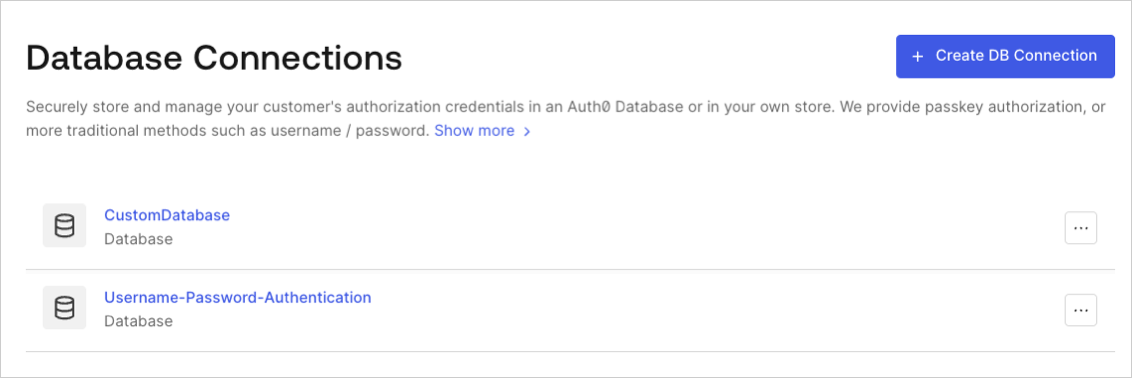
1. [Auth0 Dashboard > Authentication > Database](https://manage.auth0.com/#/connections/database) に移動し、テストする接続の横にある **試す** の矢印を選択します。
   <Frame>
     <img src="https://mintcdn.com/docs-dev-feat-sdk-reference-docs/vVLrCzoor0V6dTvM/docs/images/cdy7uua7fh8z/1Hf6ctA9xhsLOQO9IyG0VU/9061b8436368e003b165efb890d86473/DB_Connections_-_EN.png?fit=max&auto=format&n=vVLrCzoor0V6dTvM&q=85&s=aad87dbd7a110b69e75e640aed7b7423" alt="Dashboard - Authentication - Database - データベース接続一覧" width="1132" height="378" data-path="docs/images/cdy7uua7fh8z/1Hf6ctA9xhsLOQO9IyG0VU/9061b8436368e003b165efb890d86473/DB_Connections_-_EN.png" />
   </Frame>
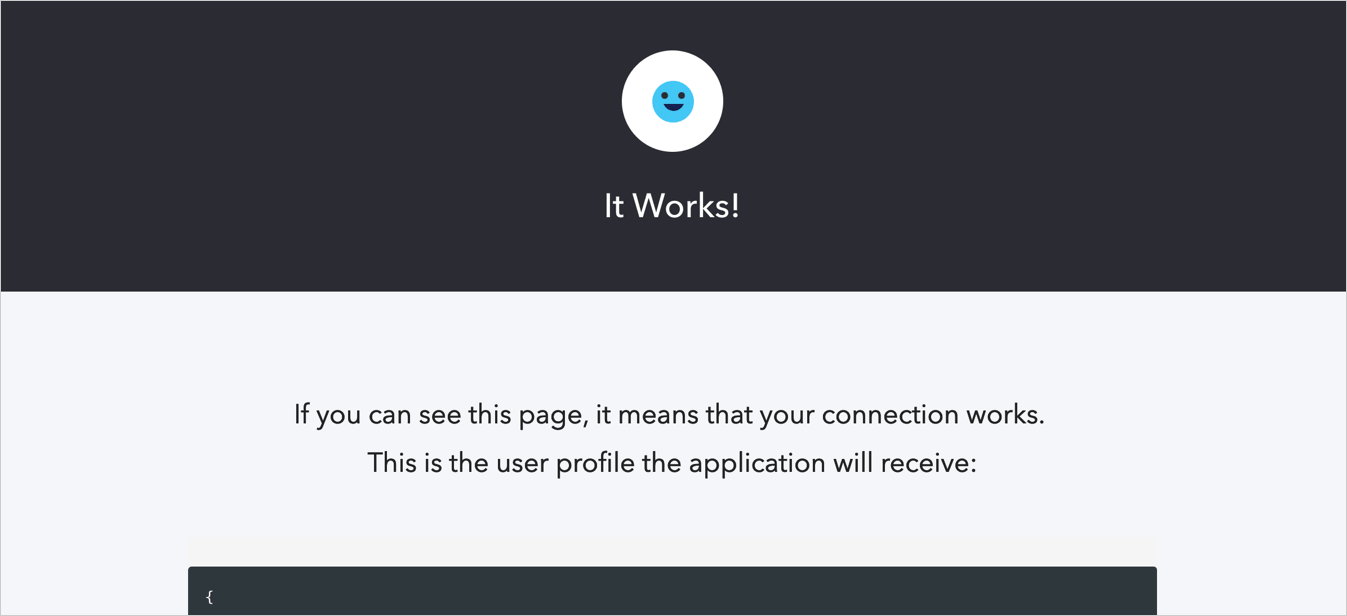
2. テストユーザーのユーザー名とパスワードを入力します。正しく設定できていれば、**It Works!** ページが表示されます。
   <Frame>
     <img src="https://mintcdn.com/docs-dev-feat-sdk-reference-docs/FaH4AVZw-B21Gt8Q/docs/images/cdy7uua7fh8z/5DWJWLf8zvZJH0rSlhK0cr/f33377edf6f82f17e11e08ec30d8d75a/connection-social-try-success.png?fit=max&auto=format&n=FaH4AVZw-B21Gt8Q&q=85&s=bbc8a245690db59e0c06c7d9bfd58515" alt="Dashboard - Connections - Database - 試す - 成功" width="1347" height="616" data-path="docs/images/cdy7uua7fh8z/5DWJWLf8zvZJH0rSlhK0cr/f33377edf6f82f17e11e08ec30d8d75a/connection-social-try-success.png" />
   </Frame>

<h2 id="learn-more">
  詳細はこちら
</h2>

* [データベース接続を設定する](/docs/ja-jp/get-started/applications/set-up-database-connections)
